Why you cannot always swap a laptop's wireless card
Some wireless cards are complete radios. Some are only half of one, and the other half is in the processor. The socket looks identical either way.
Replacing a laptop's wireless card is one of the classic cheap upgrades: a small module in a standard socket, ten minutes with a screwdriver. On a large and growing share of machines it no longer works, and the reason is not the socket.
Two kinds of card in one socket
A traditional wireless card is a complete radio: it contains the media access controller and the radio front end, it talks to the machine over a standard bus, and it works in any machine with the right socket and a driver.
The other kind is a companion module. On these platforms the controller logic lives inside the processor chipset, and the card in the socket contains only the radio. That arrangement is cheaper and uses less power, and it means the card only functions with the specific platform generation whose controller it was designed to pair with. Put it in a different machine and it is not recognised. Put a complete card into a socket wired for a companion module and it is not recognised either, because the socket is not carrying the bus the complete card needs.
The sockets are mechanically the same and the cards look alike. Nothing on the outside distinguishes them.
How to find out what your machine has
- Read the installed card's model string from the system's device inventory, then look it up on the chip maker's product page. It will state whether the part is a standalone card or a companion module, and which platform generations it pairs with.
- Read the service manual's parts list. The wireless card part numbers qualified for the machine are listed there, and they are the safe set.
- Read the platform documentation. If the processor generation implements the controller on-die, the machine almost certainly uses companion modules.
The other three obstacles
Even where the card type matches, three things routinely block a swap:
- A firmware allowlist. Some manufacturers, particularly in business lines, refuse to boot with a card not on their qualified list, and say so with an explicit error. This is a firmware policy and you cannot argue with it.
- Antenna connectors. Cards differ in the number of antenna connections and the connector type used. A card expecting more antennas than the chassis provides will work at reduced performance, at best.
- Module form factor. The socket accepts a specific module length and key. A card in a different form factor will not physically fit, whatever the interface.
What an upgrade actually buys
Newer wireless standards need a compatible access point to deliver anything, and the gains on a laptop are mostly in congested environments rather than in headline throughput. The upgrade that reliably helps is replacing a genuinely old card — one several standards behind — in a machine that will accept one. Replacing a card one generation behind, on a network without the matching access point, changes nothing you can measure.
Consider the alternative before opening the machine: a wireless adapter on a port sidesteps every compatibility problem above, works on any machine, and costs less than a card plus the risk. It occupies a port, which is its own cost — see the port icons if yours are already spoken for.
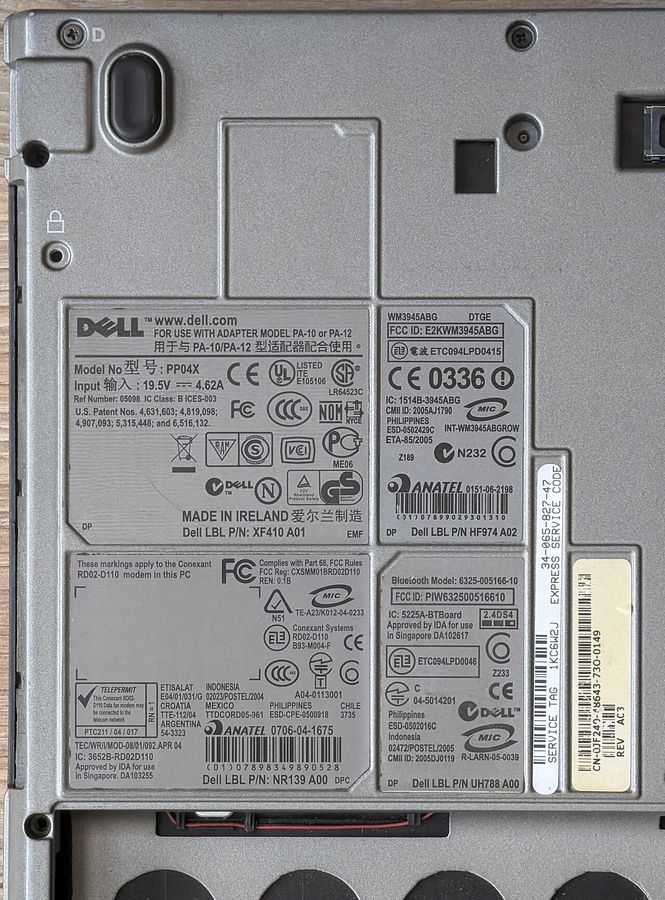
Regional certification
Wireless cards are certified per region, and a machine imported from another market may carry a card whose channel set differs from the one your local access points use. This is rarely a practical problem for common bands and occasionally a real one at the edges. It is also one of the reasons manufacturers ship different cards in different regions under the same model name — the same variation described in the panel lottery, applied to a different component.