The icons next to a laptop's USB-C ports, decoded
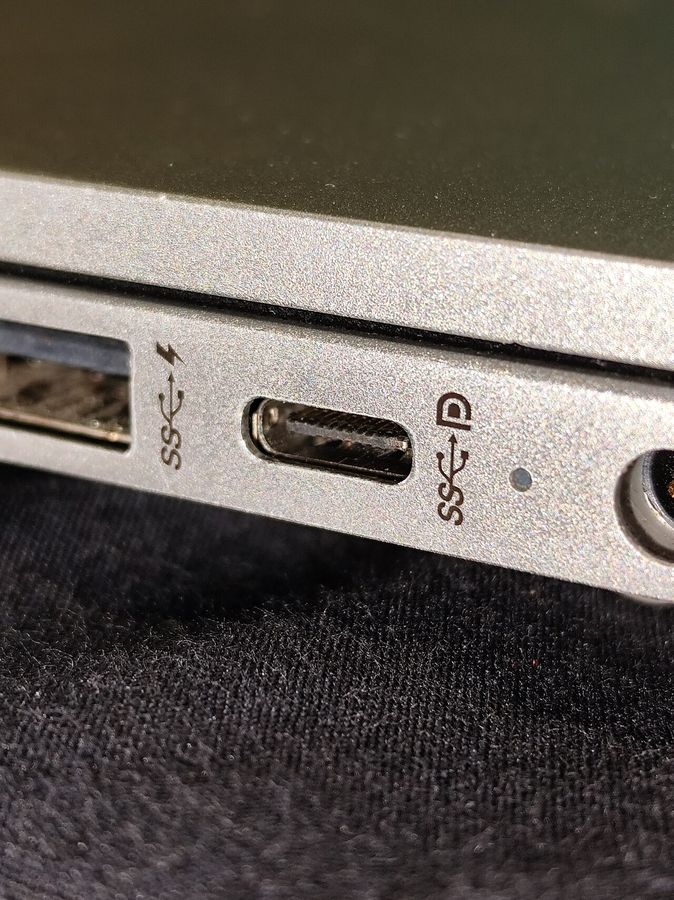
Identical sockets, different abilities. The little symbol beside each one is the only thing on the chassis that tells you which is which.
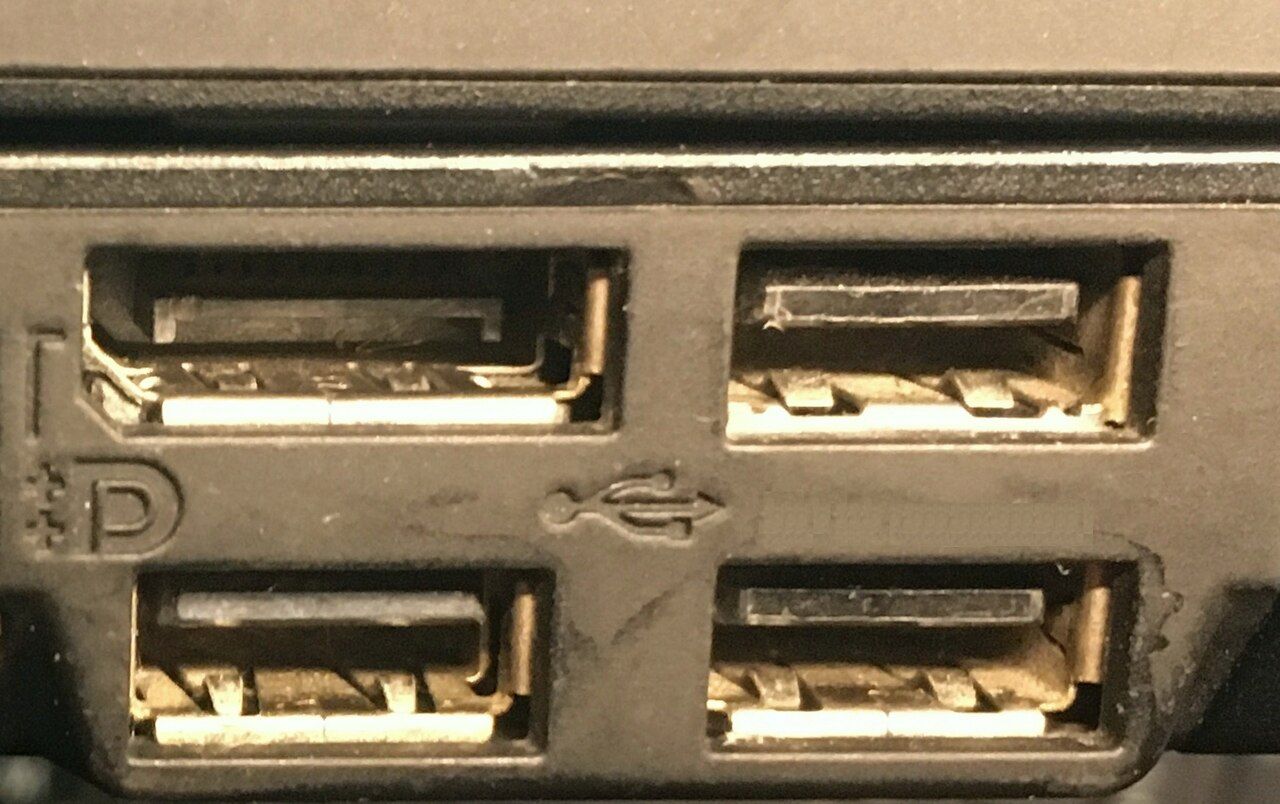
The connector is standardised. What is behind it is not. Two ports of the same shape on the same laptop can differ in transfer speed, in whether they will drive a display, in whether they will charge the machine and in how much power they will deliver to something else. The symbol printed or moulded beside the port is the manufacturer's shorthand for which combination you have.
The symbols and what they mean
- A plain trident-like symbol — the generic marking. It certifies that the port carries data and nothing more specific. On a modern laptop this is often the slowest of the machine's ports.
- A lightning-bolt symbol — the high-speed interface family that combines data, display and power in one port. A port marked this way is usually the machine's most capable, and it is the one to use for a dock.
- A "D"-shaped display symbol beside the port — the port carries a display signal. Its absence does not always mean the port will not, because manufacturers are inconsistent about marking it, but its presence is reliable.
- A battery symbol, or a bolt inside a plug outline — the port accepts charging input for the laptop, and frequently supplies higher output to a connected device.
- A number: 5, 10, 20 or 40 — the port's data rate in gigabits per second, under the newer marking convention. This is the clearest of all the markings and the one to look for on recent machines.
- No symbol at all — common, and it means you have to consult the manual. The specification page for the model lists each port's capabilities individually.
Why it matters in practice
Three failures come from plugging into the wrong port, and all three look like broken hardware:
- An external display that does not appear. The port does not carry a display signal. Move to the port with the display or bolt marking.
- A dock that works but the display flickers, or an external drive that is slow. The port is at a lower data rate than the dock expects and is sharing what bandwidth it has — the subject of docking station limits.
- A laptop that charges slowly or not at all from a charger that should be sufficient. Either the port is not a charging input, or the charger is not negotiating the voltage the laptop wants.
Charging: the number that matters is watts
A charger and a laptop negotiate a voltage and a current, and the useful figure is their product. A charger rated below what the machine draws under load will charge it slowly, or hold the charge level steady while running, or in some cases decline to charge while the machine is awake. None of that is a fault. Check the laptop's required wattage in its specification and match or exceed it.
The cable is part of this. Cables differ in the current they are rated to carry and in the data rate they support, and a cable that charges perfectly may be incapable of carrying a display signal. When a dock misbehaves, the cable is the first thing to swap.
Checking without the manual
The operating system's device inventory lists the controllers behind the ports, and that tells you how many high-speed controllers the machine has even when the chassis is unmarked. The full read-out procedure is in finding the exact configuration, and for the differences between the high-speed standards themselves see the comparison.