Docking station limits: power, displays and shared bandwidth
A dock does not add capability to a laptop. It divides the capability the laptop's port already has, and the divisions are where docks disappoint.
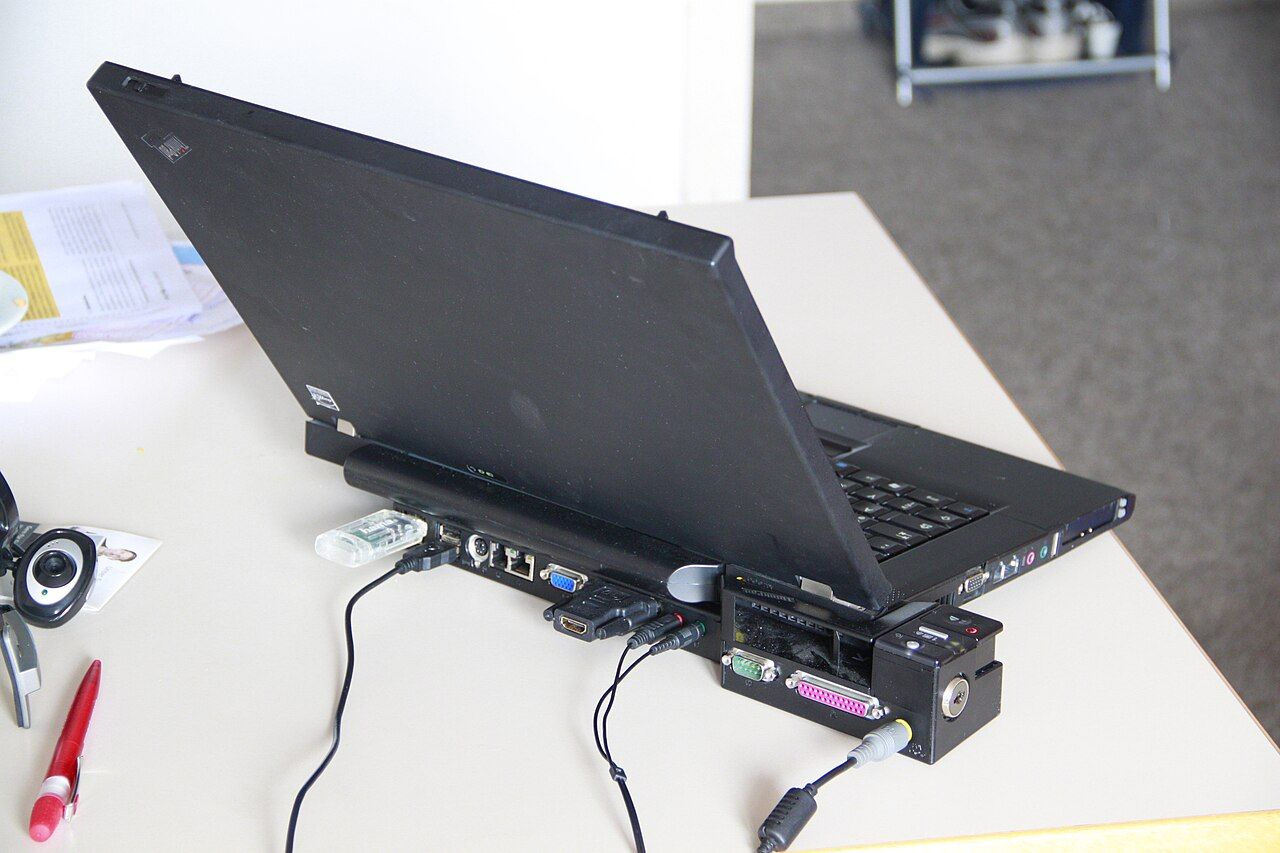
Docks are sold on their port counts, and port counts are the least informative thing about them. What determines whether a dock will do what you want is three budgets: the bandwidth of the laptop port it connects to, the display outputs the laptop's graphics can drive, and the power the dock's supply can deliver.
Budget one: bandwidth
Everything on the dock shares the single connection to the laptop. Displays take their share first and they take a lot: resolution, refresh rate and colour depth all multiply. A dock driving two high-resolution displays at a high refresh rate can consume most of the available bandwidth, and the wired network and the external drive then share what is left.
The symptom is not an error message. It is a drive that transfers at a fraction of its rated speed, or a display that silently drops to a lower refresh rate, or compression applied to the display signal. If a dock underperforms, disconnect one display and measure again: that single test identifies a bandwidth problem immediately.
Budget two: displays
The number of external displays a laptop can drive is a property of its graphics hardware, not of the dock. A dock with three video outputs connected to a laptop whose graphics support two external displays will drive two. Integrated graphics have a documented limit on independent display outputs, and the laptop's own screen usually counts against it.
Docks that exceed the limit do so with a display-over-data technique that compresses the image in software and adds latency and processor load. It works, it is a legitimate solution for static work, and it is not equivalent to a native output. Check which kind a dock uses before buying it for a multi-display desk.
Budget three: power
A dock's power supply serves both the laptop and the dock's own ports. The figure to compare is the dock's stated power delivery to the host, not the rating on its brick — the difference between the two is what the dock keeps for itself and for whatever you plug into it.
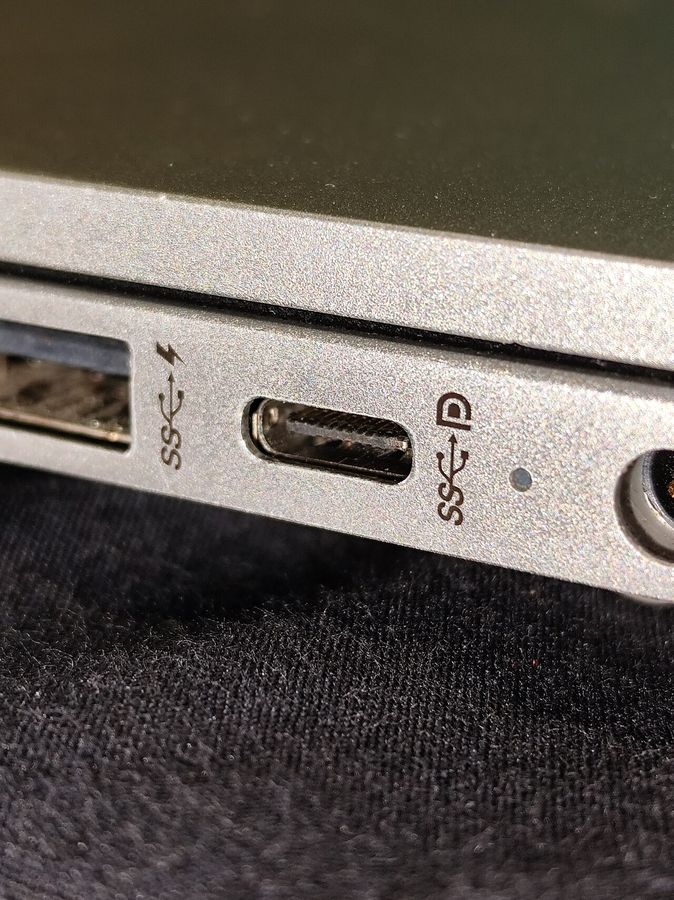
If the host delivery is below what the laptop draws under load, the laptop runs on mains and battery together during heavy work and slowly loses charge. That is not a failure and many people never notice it, but it is why a machine can be plugged in all day and still be at eighty per cent by evening. Match the host delivery figure to the laptop's own charger rating, and see the port icons guide for how charging negotiation works.
Practical selection
- Start from the laptop's port, not from the dock. A dock that needs a certified high-speed port will underdeliver on an ordinary one — the distinction is in the standards comparison.
- Count the displays your graphics support before counting the dock's outputs.
- Read the host power delivery figure, and treat its absence from a product page as meaningful.
- Use the cable that came with the dock. More dock faults are cable faults than anything else, and a cable rated for charging is not necessarily rated for a display.
- Check the firmware update path. Dock firmware fixes real problems, particularly around sleep and wake, and a dock with no update mechanism is a dock that will keep whatever problems it shipped with.
The alternative worth considering
For a fixed desk with one display, connecting the display directly to the laptop's video output and using a small hub for peripherals sidesteps every budget above, costs less, and fails in fewer ways. The dock earns its price when the desk is shared, when the cable count matters, or when the laptop has no video output of its own — which is increasingly the case on thin machines, and is one of the trade-offs recorded in the model pages in our brand archive.