Thunderbolt, USB4 and DisplayPort Alt Mode compared
Three names for things that share a connector and overlap heavily. What separates them is what is guaranteed, not what is possible.
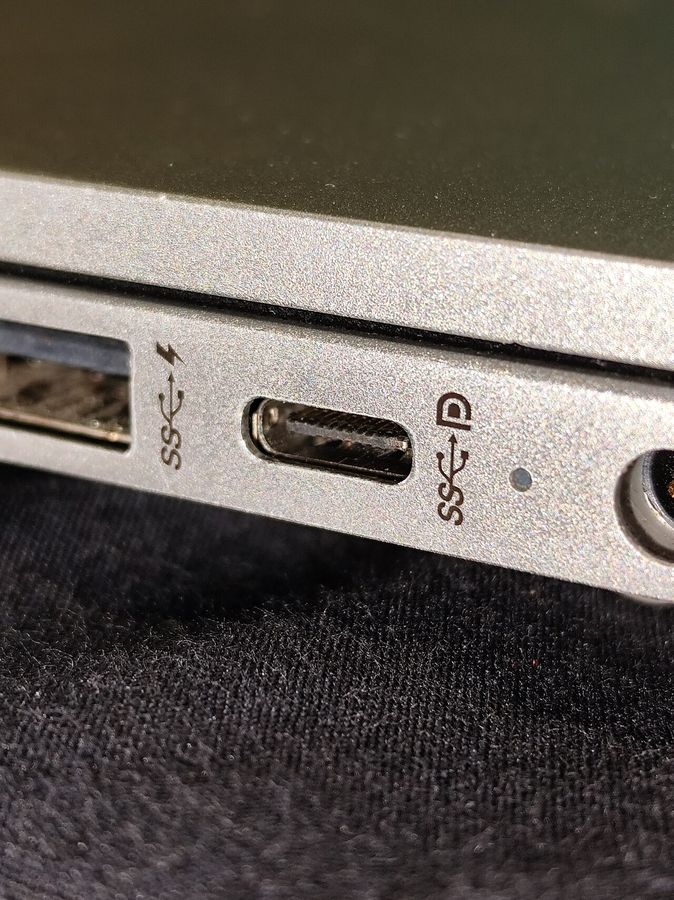
These three appear in laptop specifications interchangeably enough that buyers treat them as synonyms. They are not, and the difference is not mainly about peak speed. It is about which capabilities are mandatory and which are left to the manufacturer.
DisplayPort Alt Mode
The narrowest of the three, and the oldest. It is an arrangement whereby a port reassigns some of its wires to carry a display signal directly. That is all it does: a port with Alt Mode drives a monitor, and its data capabilities are whatever the port had anyway.
It is also the most widely available, appearing on machines with no high-speed interface at all. If your only requirement is one external display from a modern port, this is sufficient and you should not pay for more.
USB4
A specification that folds the high-speed tunnelling architecture into the mainstream standard. It guarantees a baseline data rate, and it mandates display support. Beyond that, significant capabilities are optional, and this is the part that catches people out: the higher data rate tier is optional, and support for tunnelling the expansion bus — the thing that makes external graphics enclosures and high-speed dock storage work — is optional.
So two ports can both be correctly labelled with the same standard and behave very differently. The specification sheet for the laptop has to be read for the specifics; the label alone does not settle it.
Thunderbolt 4
A certification layered on top, and its value is that it makes the optional parts mandatory. A certified port guarantees the higher data rate, guarantees support for two external displays at a stated resolution or one at a higher one, guarantees expansion-bus tunnelling at a minimum bandwidth, guarantees a minimum charging capability, and guarantees that the machine can wake from sleep over an attached dock.
It also certifies cables, which matters more than the specifications suggest: a certified cable of a given length is tested to carry the full rate, and an uncertified one of the same shape frequently is not.
Choosing
- One external monitor and ordinary peripherals: Alt Mode is enough.
- A dock with a display, wired network and storage: USB4 will usually do it; check the machine's stated data rate and display support first.
- Two external displays from one cable, an external graphics enclosure, or high-speed external storage: the certified option is the only one that guarantees it. Everything else has to be verified per machine.
- Mixed platforms: the certified ports interoperate most predictably, which is the practical argument for them in an office with varied hardware.
The constraint nobody advertises
All of this shares a fixed amount of bandwidth per port, and a dock divides it among displays, network and storage. A high-resolution display at a high refresh rate consumes a large share, and the storage performance falls accordingly. That is not a fault in any of the three standards; it is the bandwidth budget doing what it does. The arithmetic is set out in docking station power and display limits.
Identifying what a machine has
The chassis markings are described in the port icons guide. The authoritative source is the model's specification page, which lists each port separately — and on laptops with both certified and ordinary ports, which is most of them, that per-port listing is the only thing that tells you which socket to use.